
Permissions
The SmarTruck system offers three permission levels: User, Admin, and Superadmin.
- Superadmin: Can manage system-level users, including their creation, modification, and deletion.
- Admin: Can manage workflow participants (operators) and vehicles by creating, modifying, or deleting them. Admins cannot manage system-level users.
- User: Can monitor and query system data but typically does not actively participate in the monitored workflows.
User Management
To access the User management section, click the Admin menu and select the User submenu. Here, you will find an overview table listing all users previously added to the system.
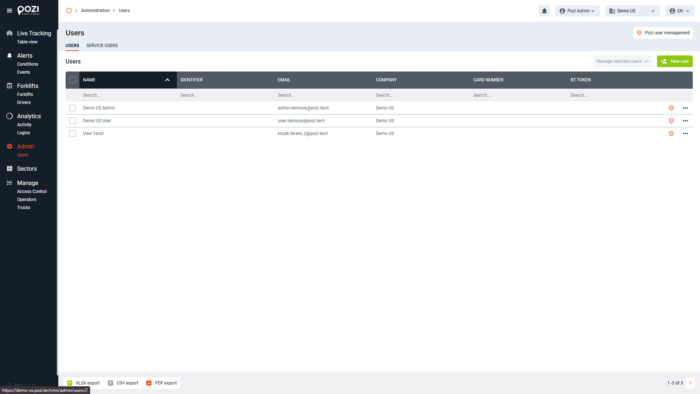
Viewing User Details
Click a user in the list to view their profile.
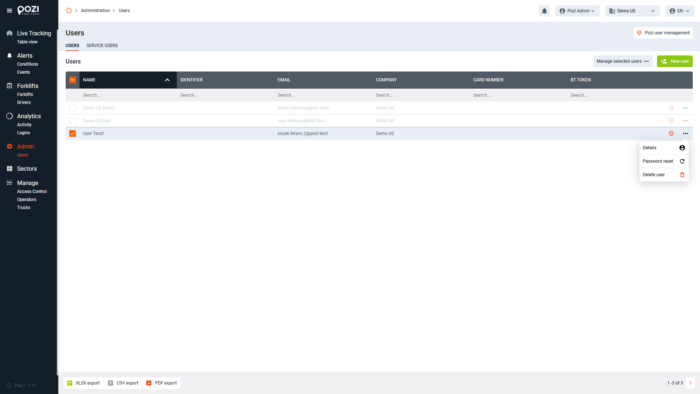
Each user entry includes information such as:
- Name
- Email address
- ID number
- Company name
- ID card number
- Assigned Bluetooth token (if applicable)
- Phone number
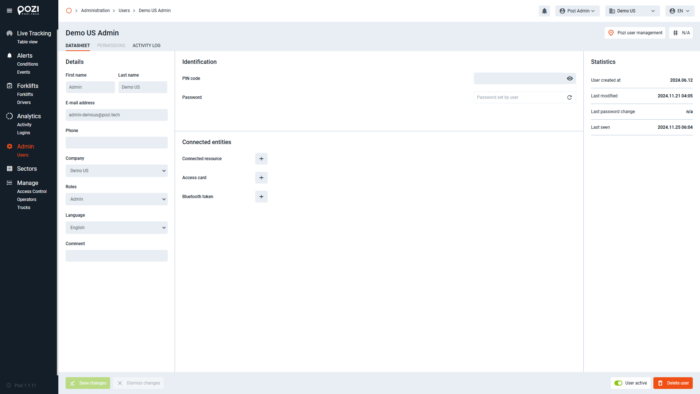
Editing User Information
With Superadmin permissions, you can edit user details directly in the profile view by clicking the desired fields.
The profile also displays:
- The user’s creation date
- Last modification date
- Last password change
- Most recent login
To save changes, click Save Changes in the bottom-left corner.
Activating or Deactivating Users
Use the toggle in the bottom-right corner to activate or deactivate a user. Deactivation hides the user from the active list but does not delete them.
Deleting Users
To permanently remove a user, click the Delete User icon. This action removes the user from the system.
Activity Log
Access the Activity Log to view system-recorded events related to a user.
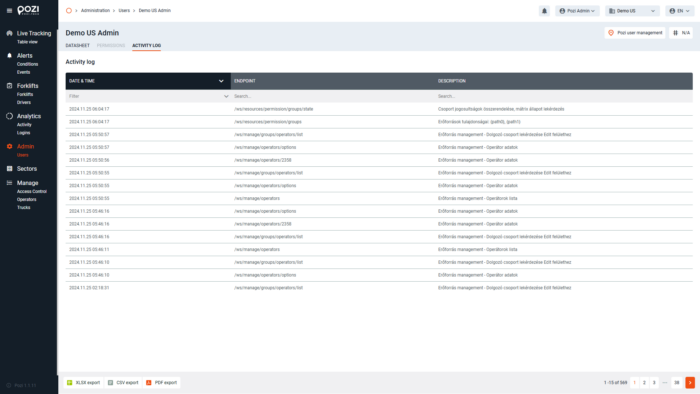
User Profile Management
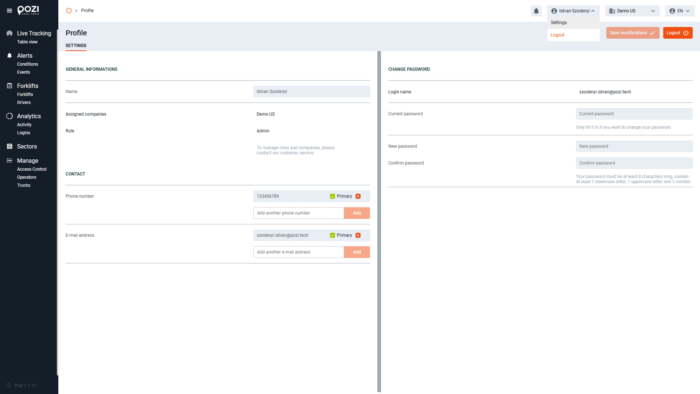
Logged-in users can manage their personal details, including email addresses and phone numbers.
Accessing the User Profile
- Click your username in the top-right corner of the screen.
- Select Settings from the dropdown menu.
The profile screen will display:
- Left panel: General user information.
- Right panel: Password management options.
Updating Contact Information
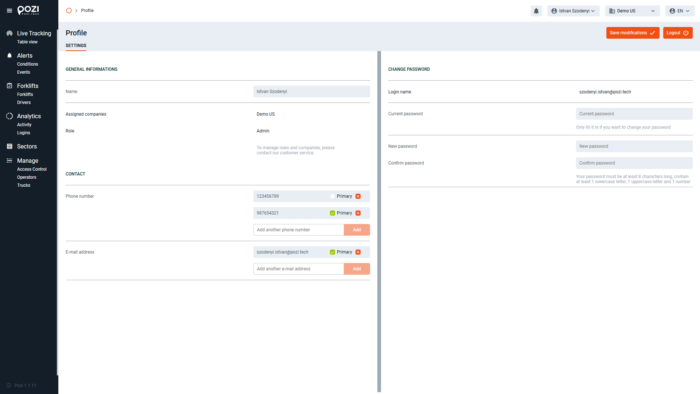
In the left panel logged-in users can manage their personal details, including email addresses and the phone numbers used for receiving alert notifications.
- Add or delete phone numbers and email addresses.
- Set a primary contact by clicking the Primary label next to the selected number/email.
Once changes are made, click Save Changes in the top-right corner to finalize them.
Changing Your Password
- In the right panel, enter your current password.
- Enter a new password (confirm it in the field below).
- Password requirements: Minimum 8 characters, including at least one uppercase letter, one number, and one special character.
- Click Save Changes to apply.
Users with User-level permissions can update their passwords without requiring Admin or Superadmin permissions.
Administrator Password Reset
An administrator can reset a user’s password. The user will be notified of the new password via:
- A popup message on their primary phone, or
- An email sent to their primary email address.