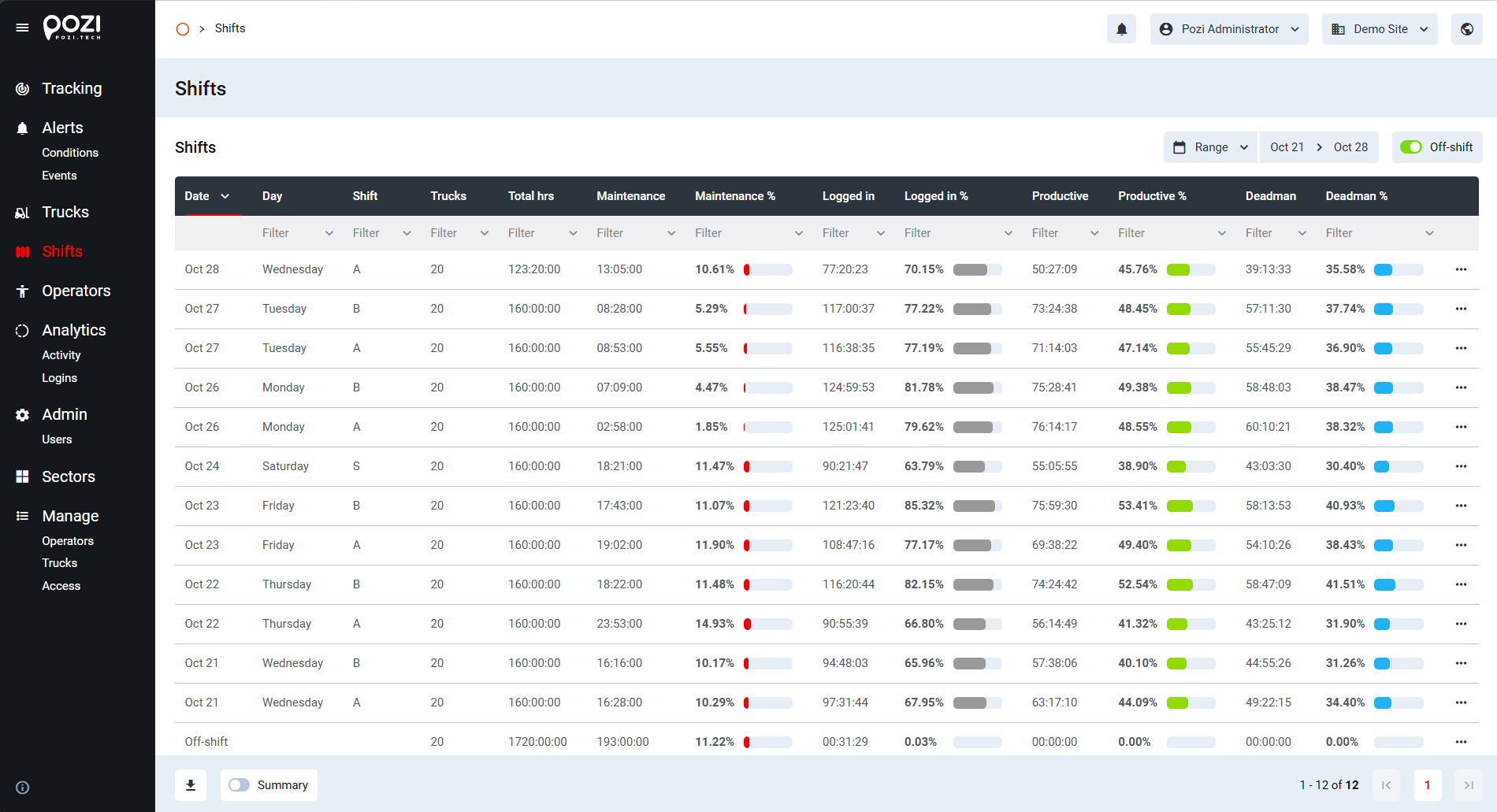
The Shifts menu in the SmarTruck system provides an overview of how the truck fleet was utilized during each work shift. Each row of the table represents one shift on a given day, making it easy to compare shifts and identify periods of high or low utilization.
You can access the Shifts page by clicking the Shifts item in the main menu on the left side of the screen.
Use the date selector in the top-right corner of the screen to filter data by date. The following options are available:
- Day: displays the shifts of a single day.
- Range: displays the shifts between a chosen start and end date. This is the default setting, showing the last 7 days.
- Recent: displays the shifts of the most recent period.
- All Time: displays every recorded shift.
The table displays the following information for each shift:
- Date and day of the week
- Shift name
- Number of trucks
- Total hours (the length of the shift multiplied by the number of trucks)
- Maintenance time and percentage
- Logged-in time and percentage
- Productive time and percentage
- Deadman time and percentage
The maintenance percentage is calculated relative to the total hours of the shift, while the logged-in, productive and deadman percentages are calculated relative to the available time (total hours minus maintenance). Like other tables in the SmarTruck system, this one is fully searchable and filterable.
Viewing the Trucks of a Shift
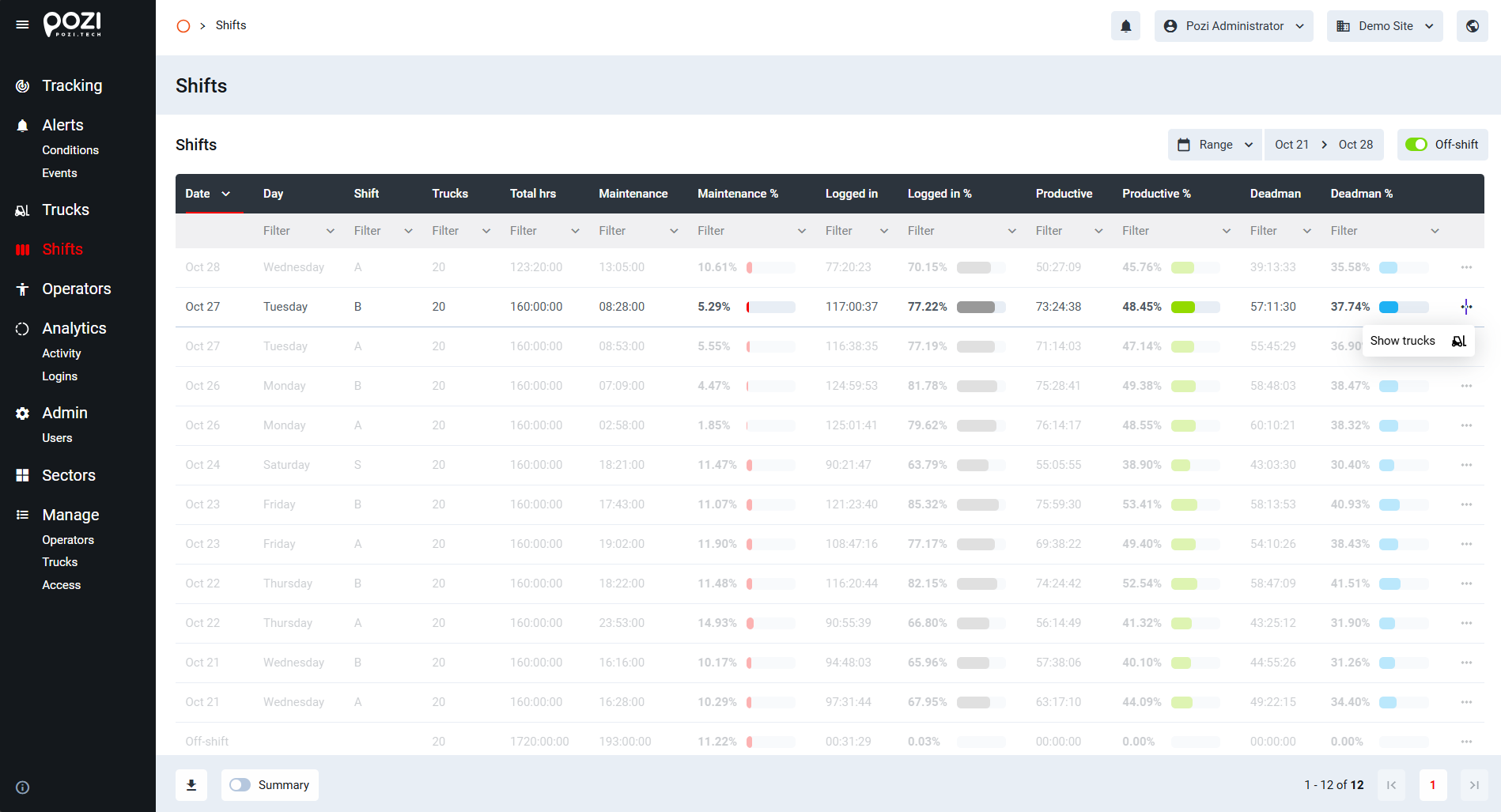
Click the … icon at the end of a shift row and choose Show trucks from the dropdown menu.
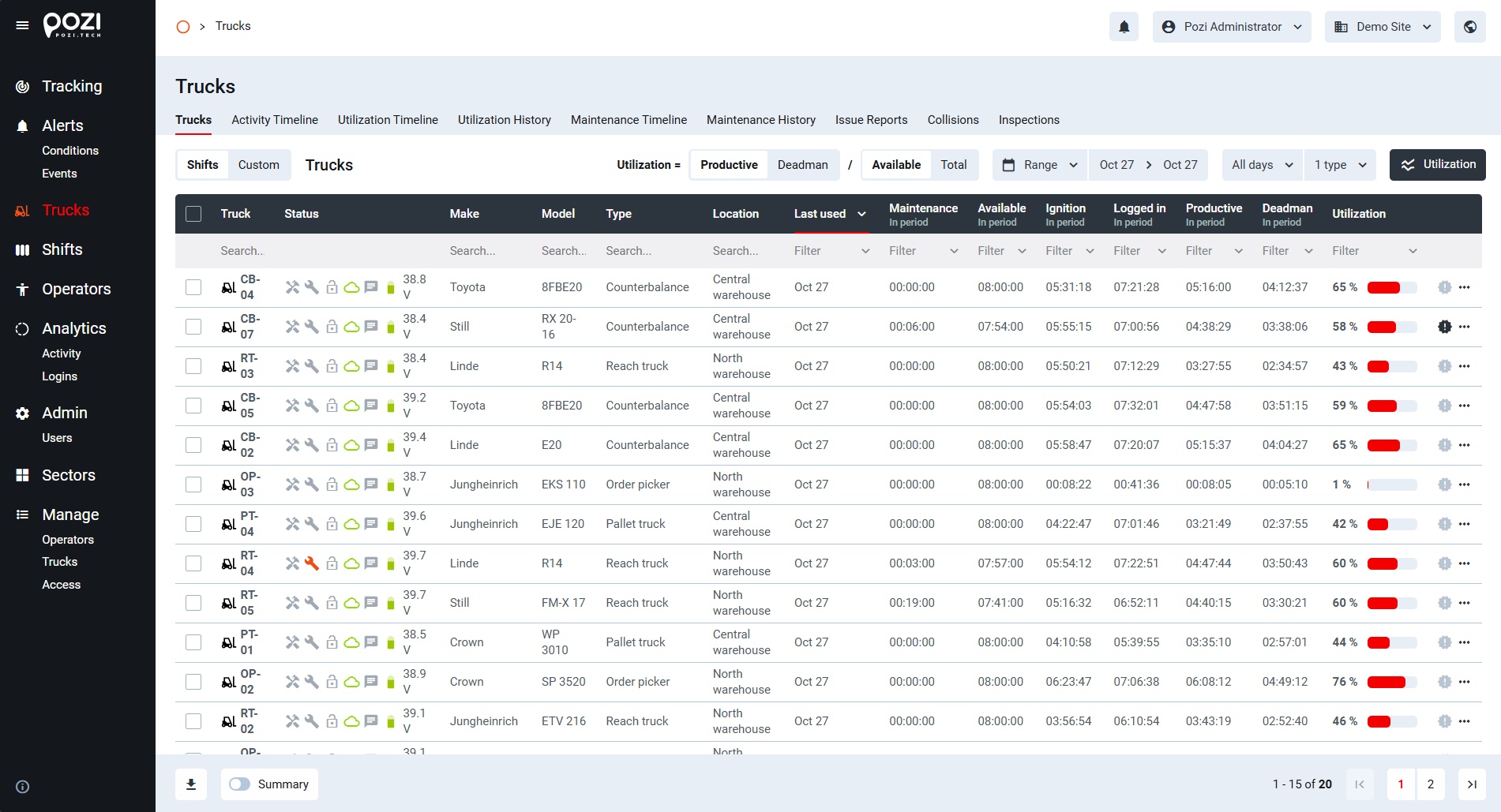
This opens the All Trucks page in the Trucks menu, filtered to the selected day and shift. Here you can see the utilization data of each truck during that shift.