
1. Truck Terminal
1.1. Launch the PoziTech Truck Terminal
If the initial setup procedure is successful, the following screen will be the Home screen each time you start the application:
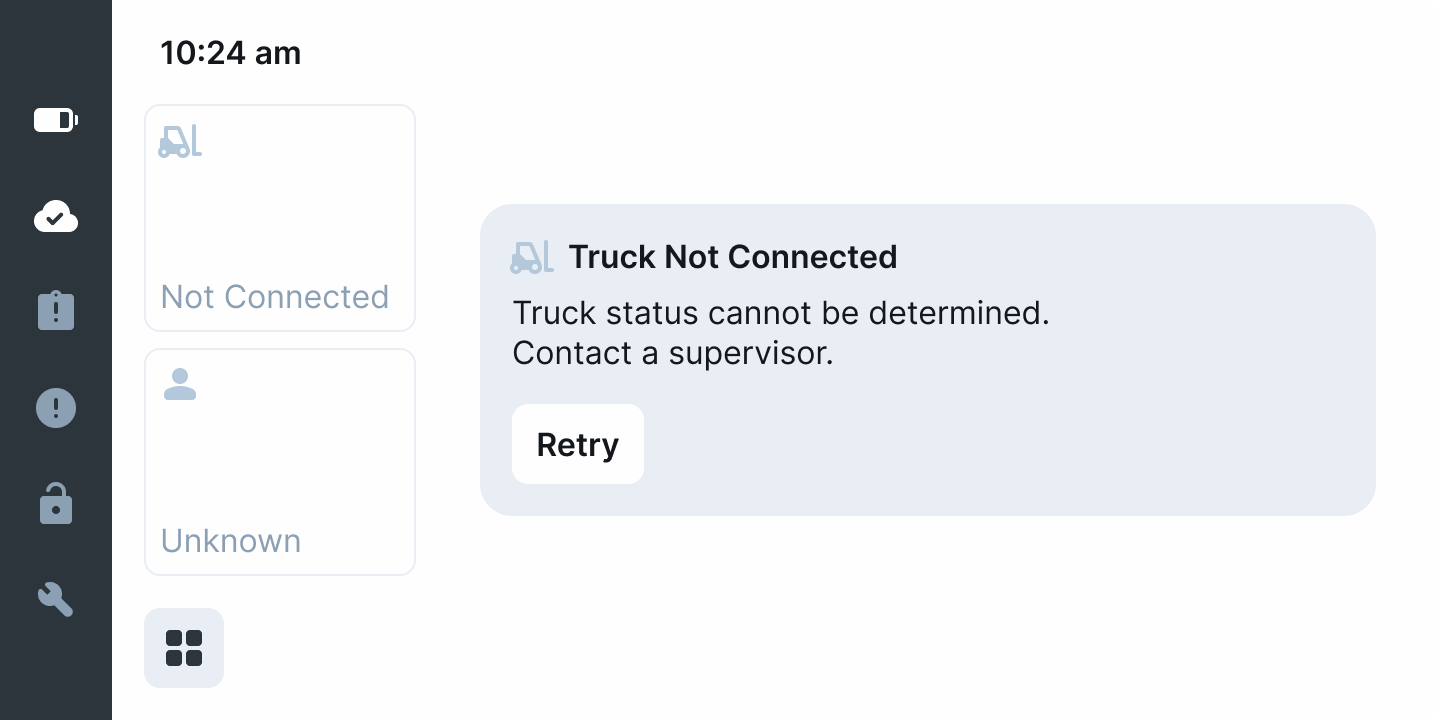
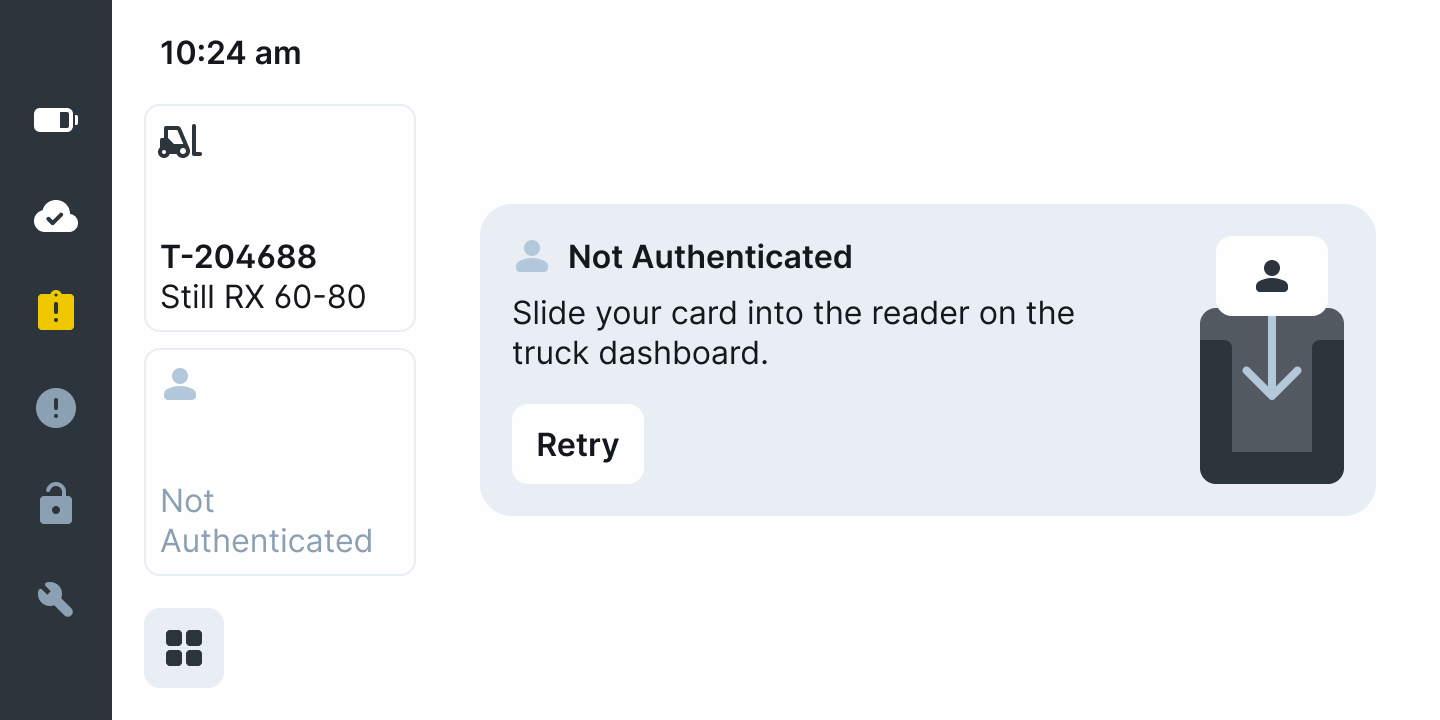
On the Home screen (left-most side of the Dashboard, dark gray highlighted bar with icons), there is information about the status of the device and the forklift it is connected to. The icons can change color based on the state of the device and serve as an additional indicator (additional information in Subsection 1.3).

- Device battery level
- Device internet connection
- Safety inspection status
- Issue reports
- Truck lock
- Maintenance status
1.2. Dashboard Cards
There are other status indicators on the Home screen appearing as Dashboard Cards (color-coded boxes on the right side of the screen) and correspond to some of the above-mentioned icons, but include more details about required actions.
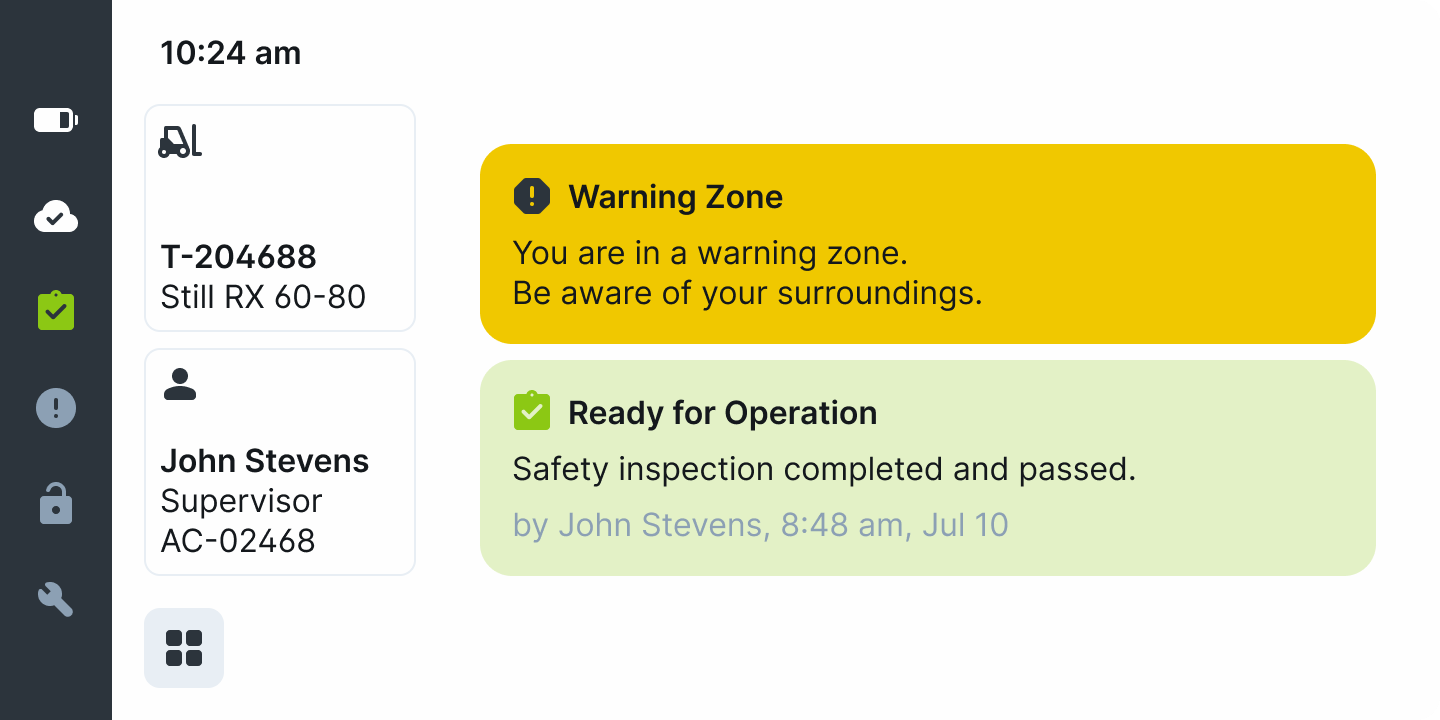
All the status messages that can appear on the Home screen informing and warning the operator. There are four types of Cards:
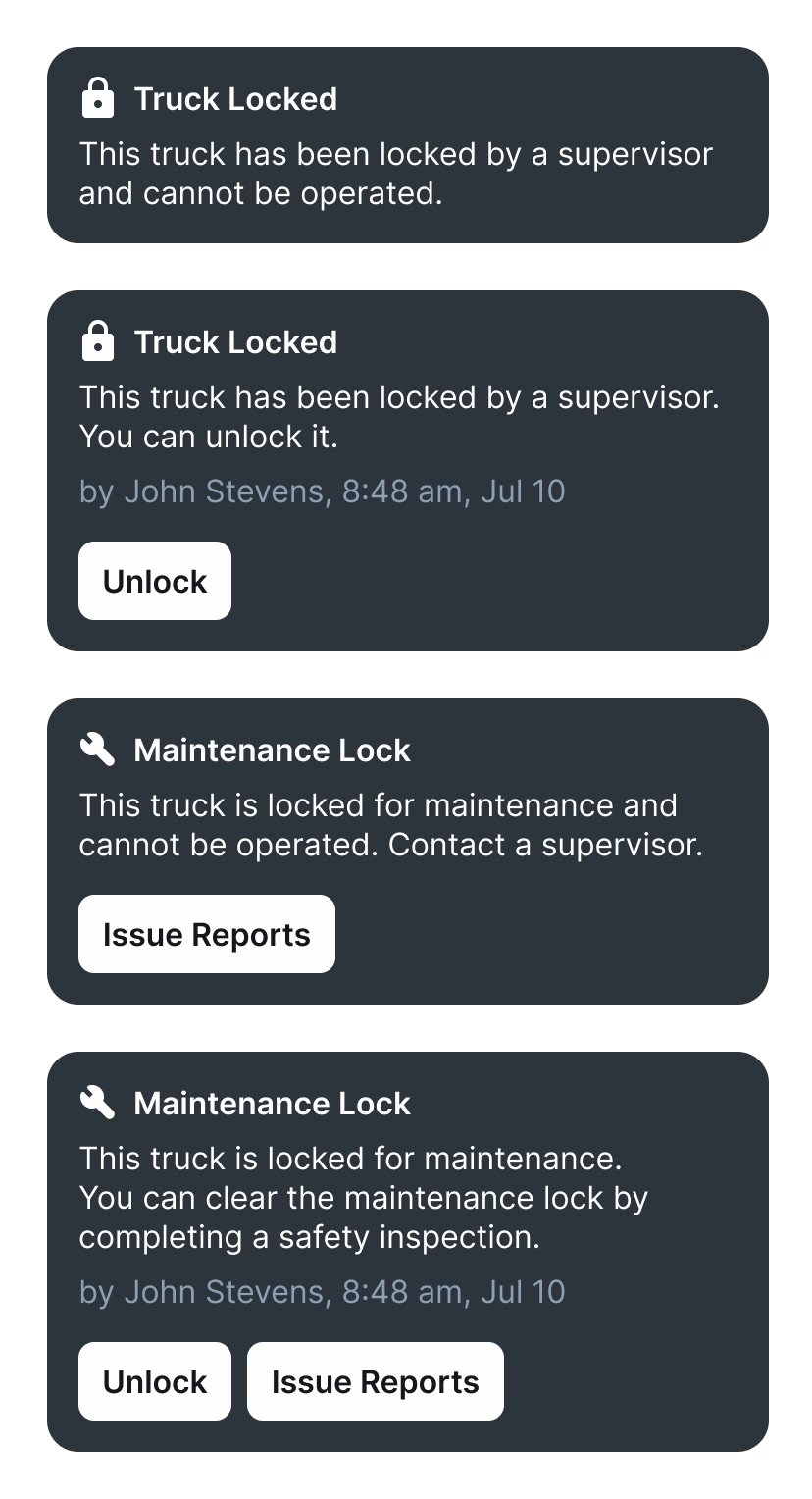
Maintenance Lock Cards:
A truck can be under two types of Locks as shown on the Cards:
- Truck Lock
- Maintenance Lock
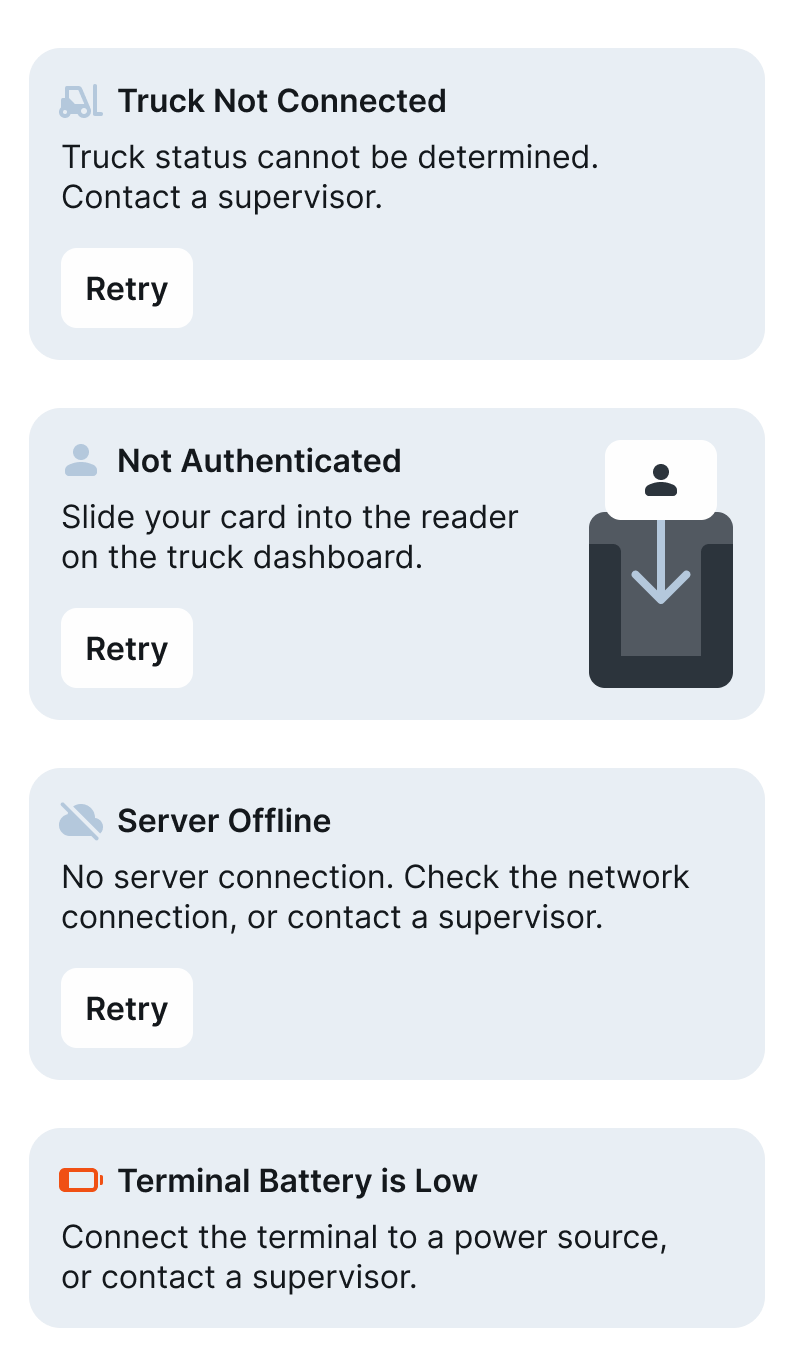
Mobile Terminal Status Cards:
These cards indicate the device status, such as truck connections, operator authorizations, low battery, and network connection.
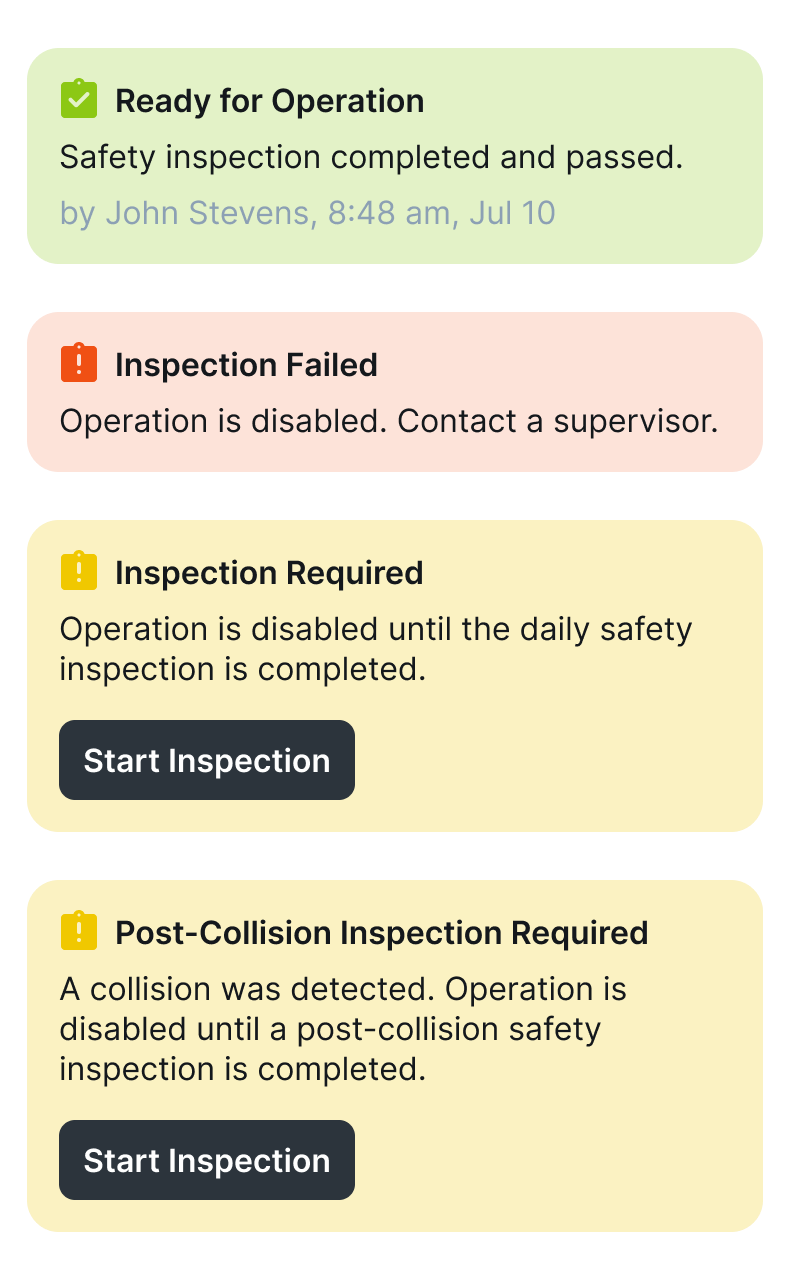
Inspection Status Cards:
Inspections can have four states:
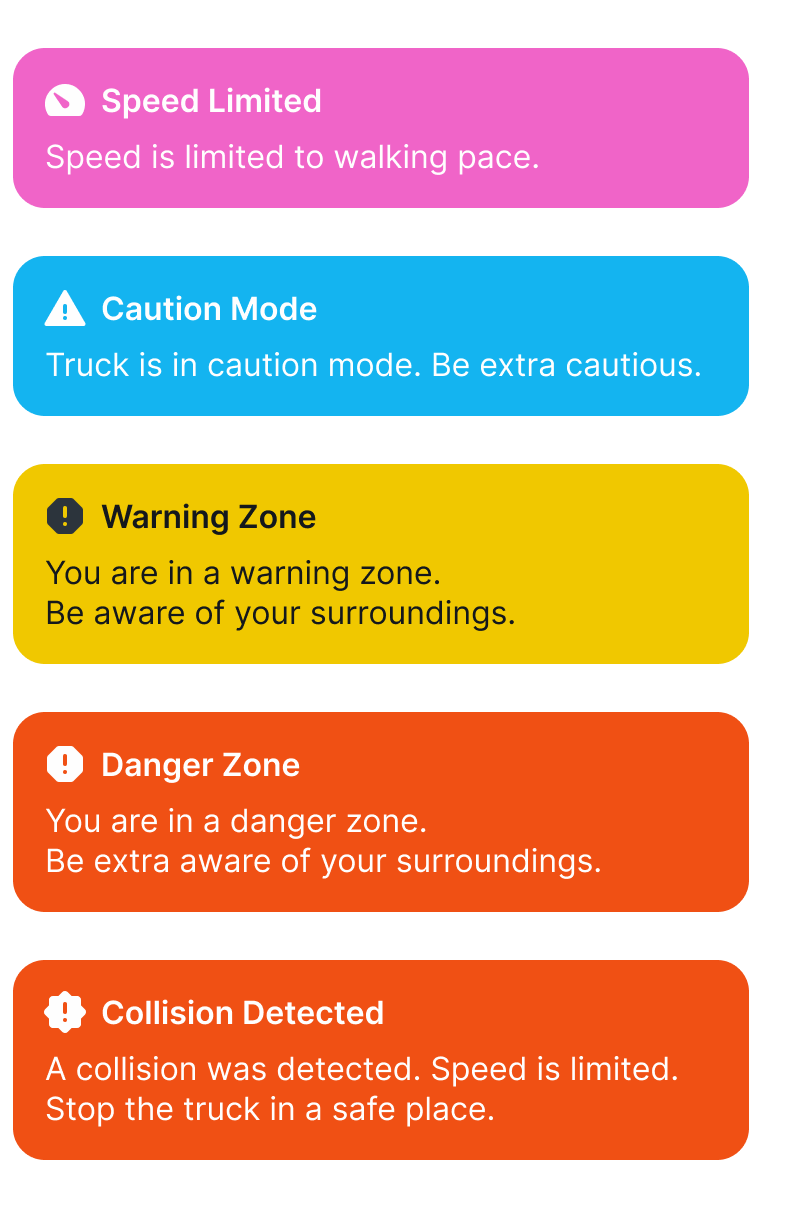
SafeTruck Warning Cards:
As part of the SafeTruck features, the system:
- Recognizes the operating forklift’s speed
- Detects collisions
- Measures and warns of distances from other operators, gates, and operating forklifts
1.3. Control Panel
The Control Panel can be accessed by clicking the small icon in the bottom corner on the left side of the Home screen:
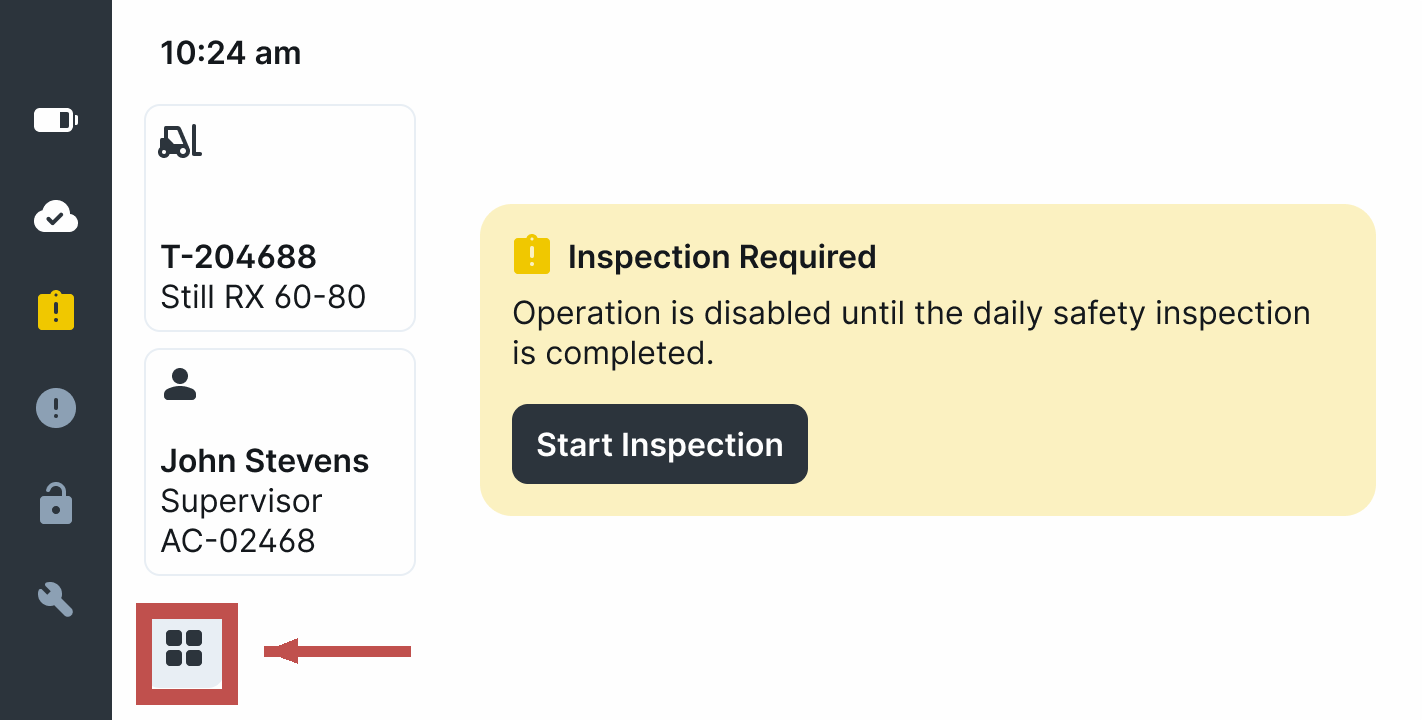
This takes the user to the Control Panel which has the following look:
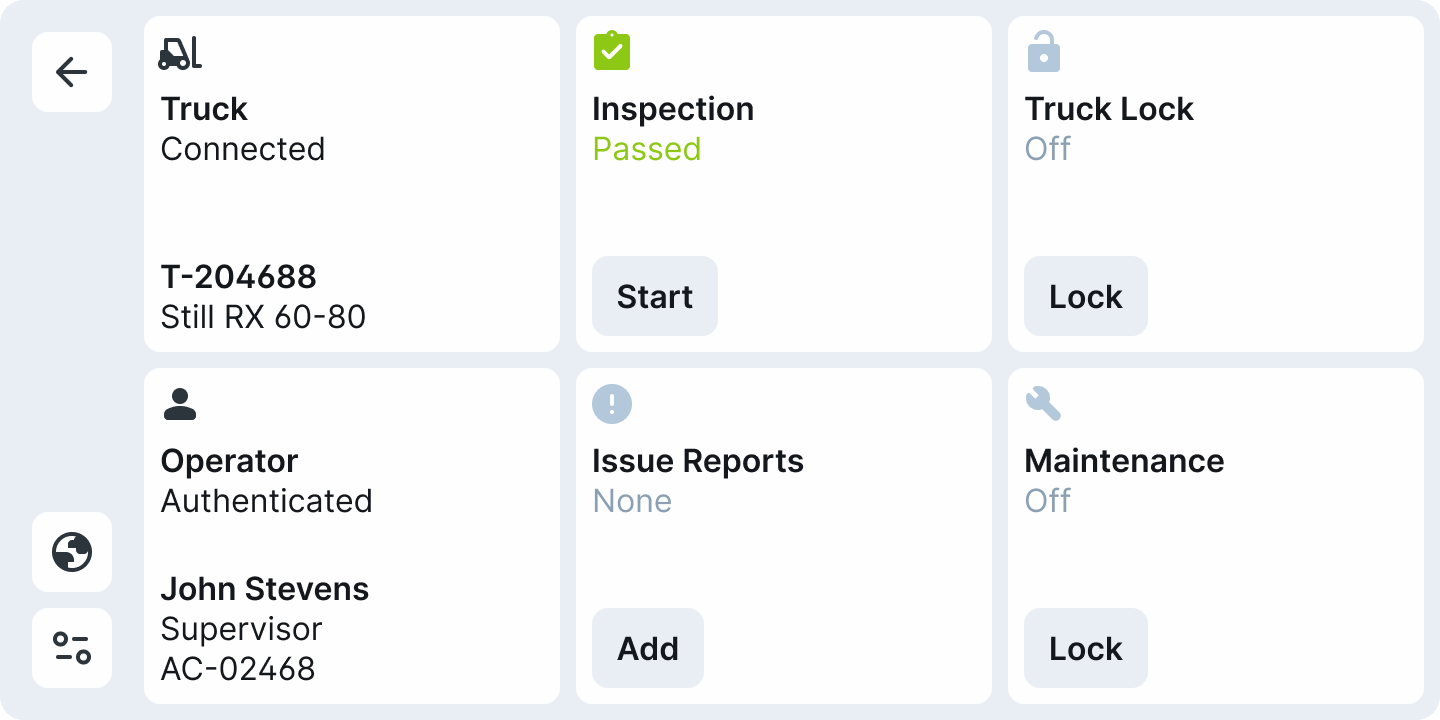
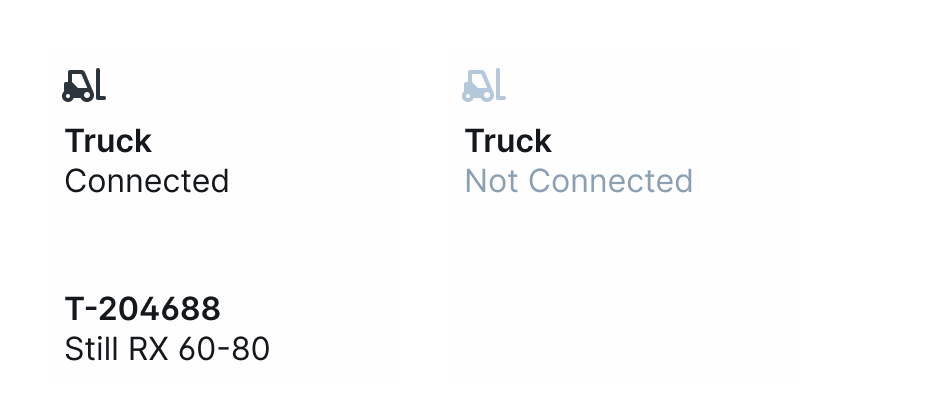
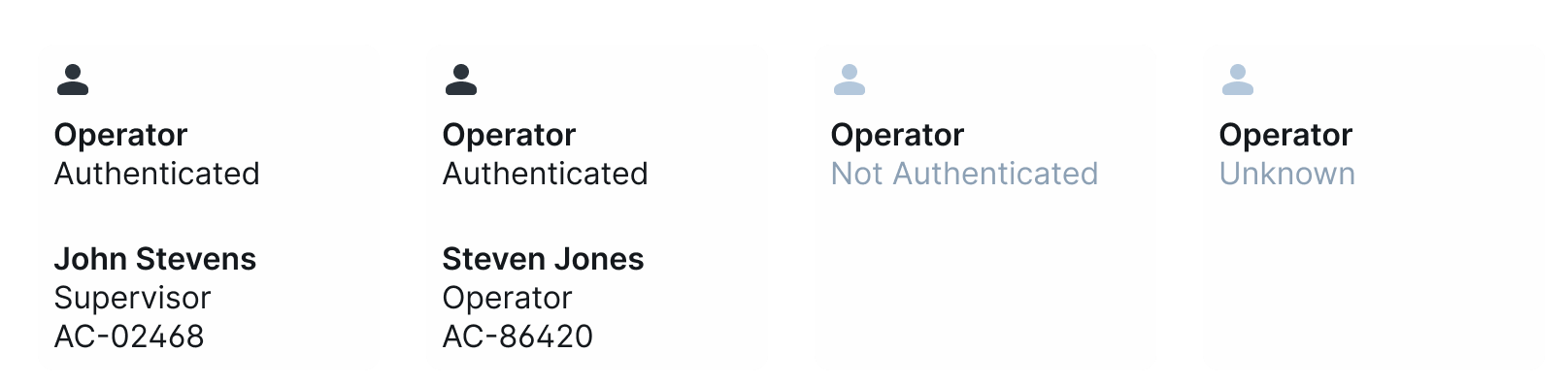
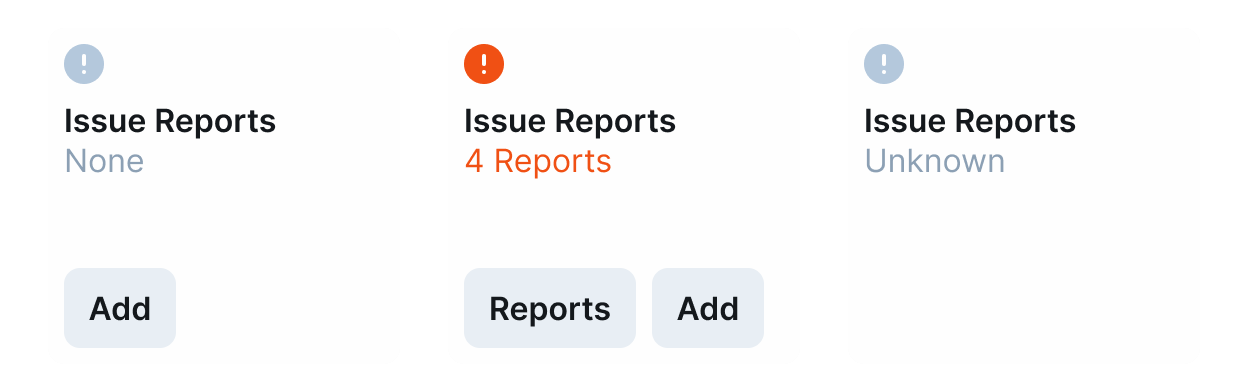
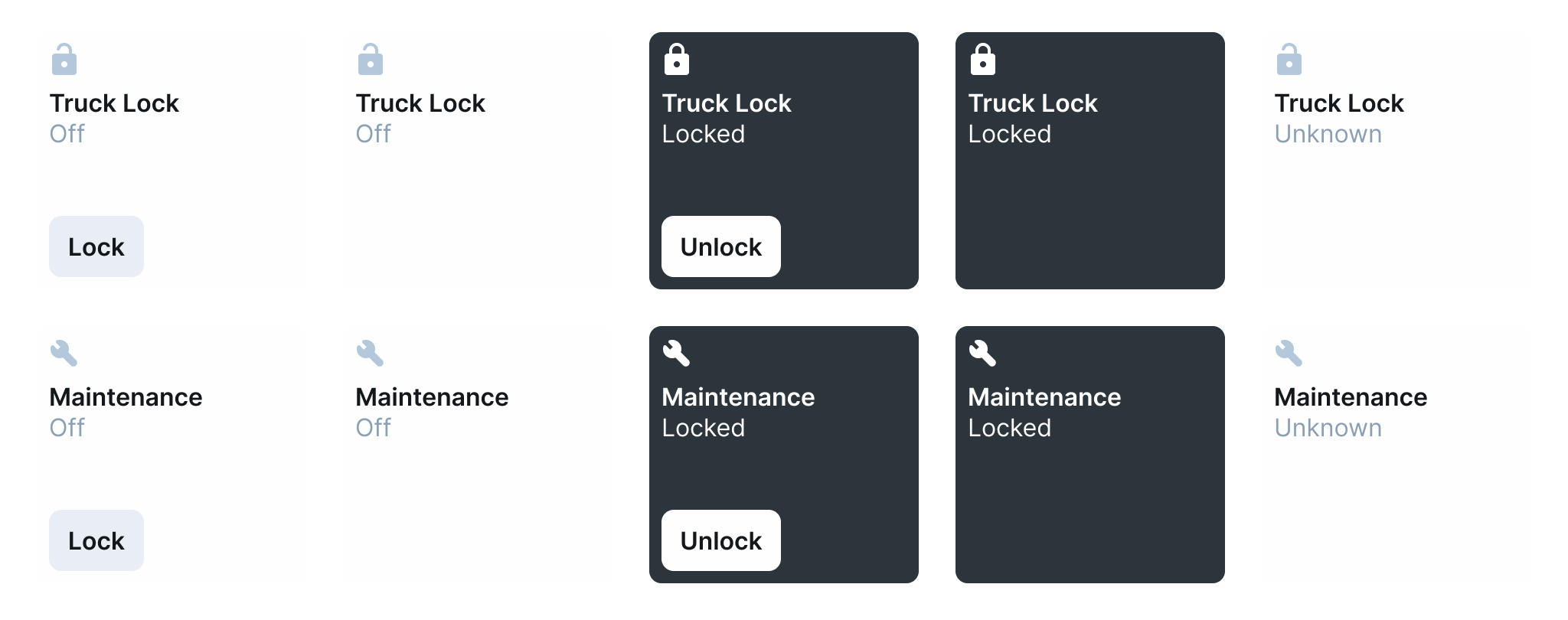
These Tiles can display various states:

1.4. Issue Reports
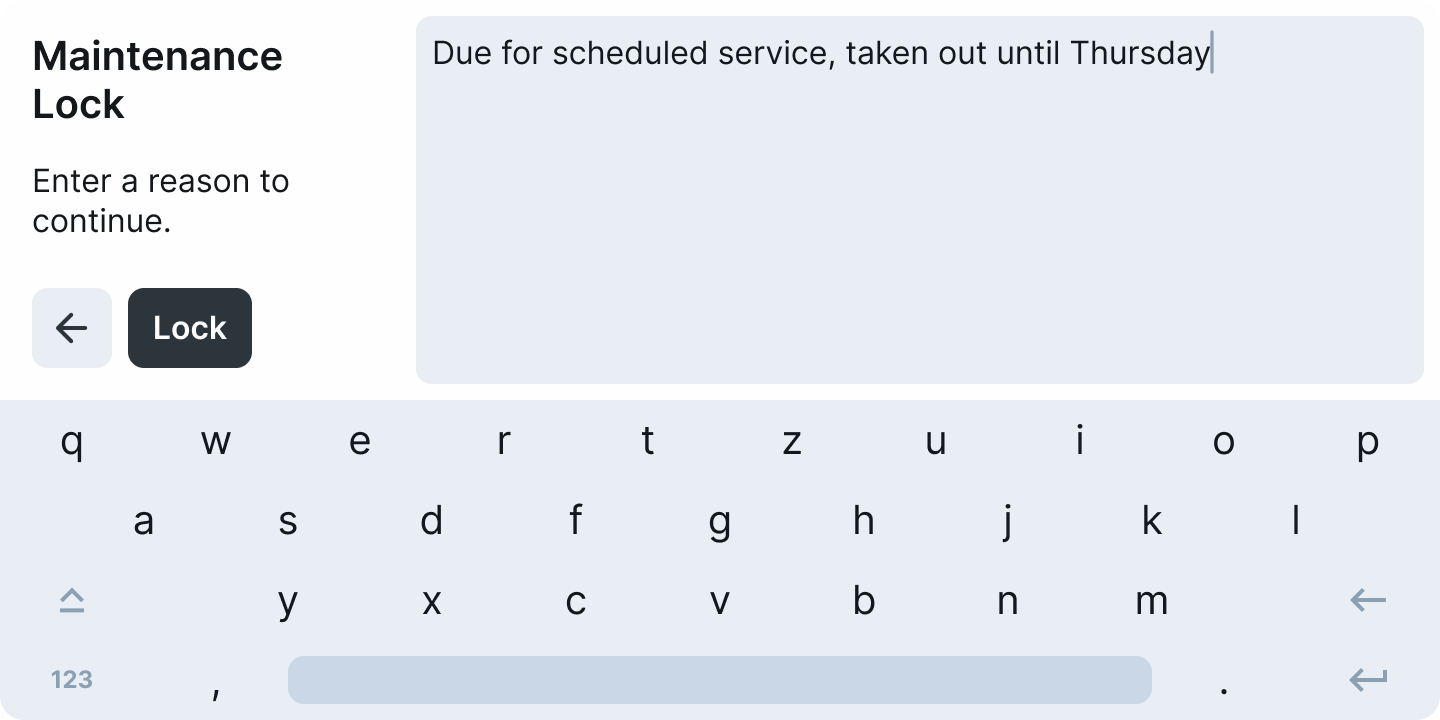
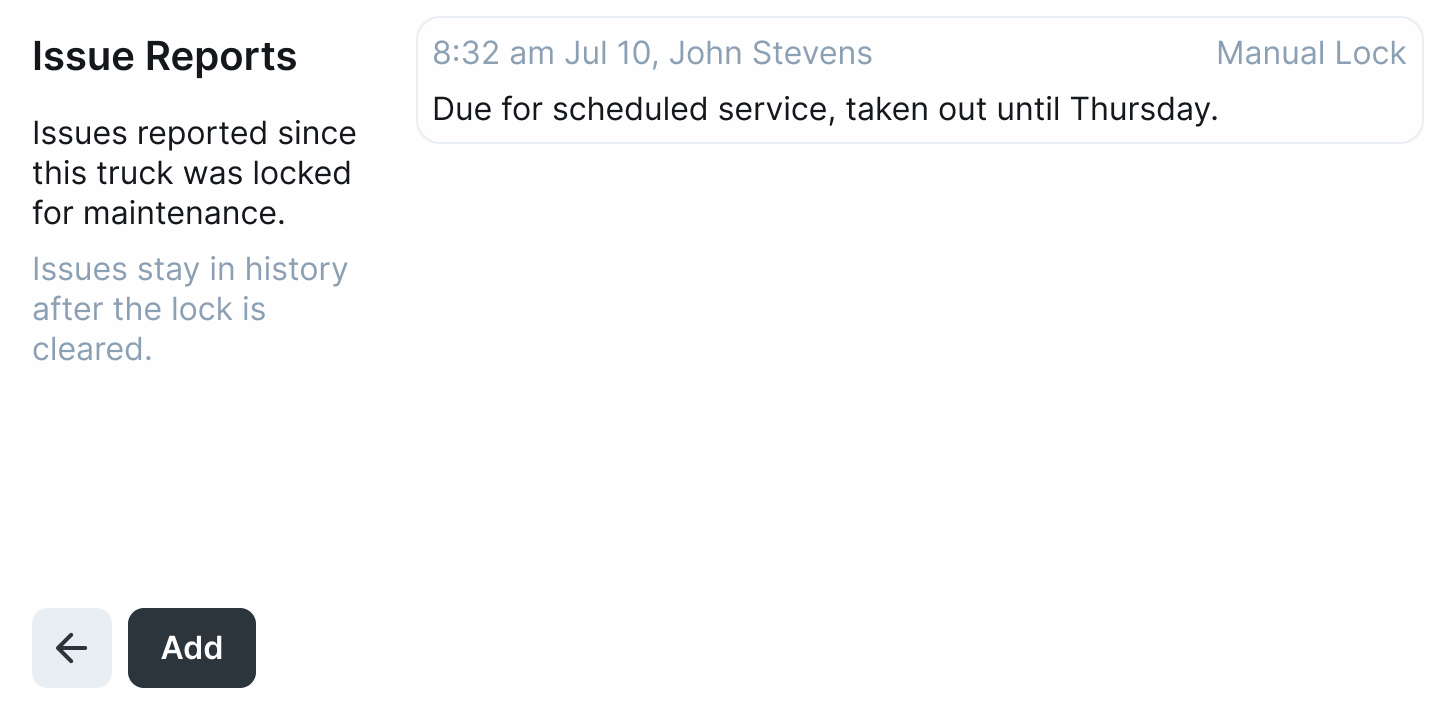
The Issue Reports screen can be accessed in multiple ways. One way is by clicking the Issue Reports button while a supervisor is attempting to lift a Maintenance Lock. In this case, the supervisor is required to review the history of reports generated when an operator filled out a Safety Inspection and failed it. These reports include the timestamp, operator information, the exact reason the report was created, and details of the issue with the forklift.
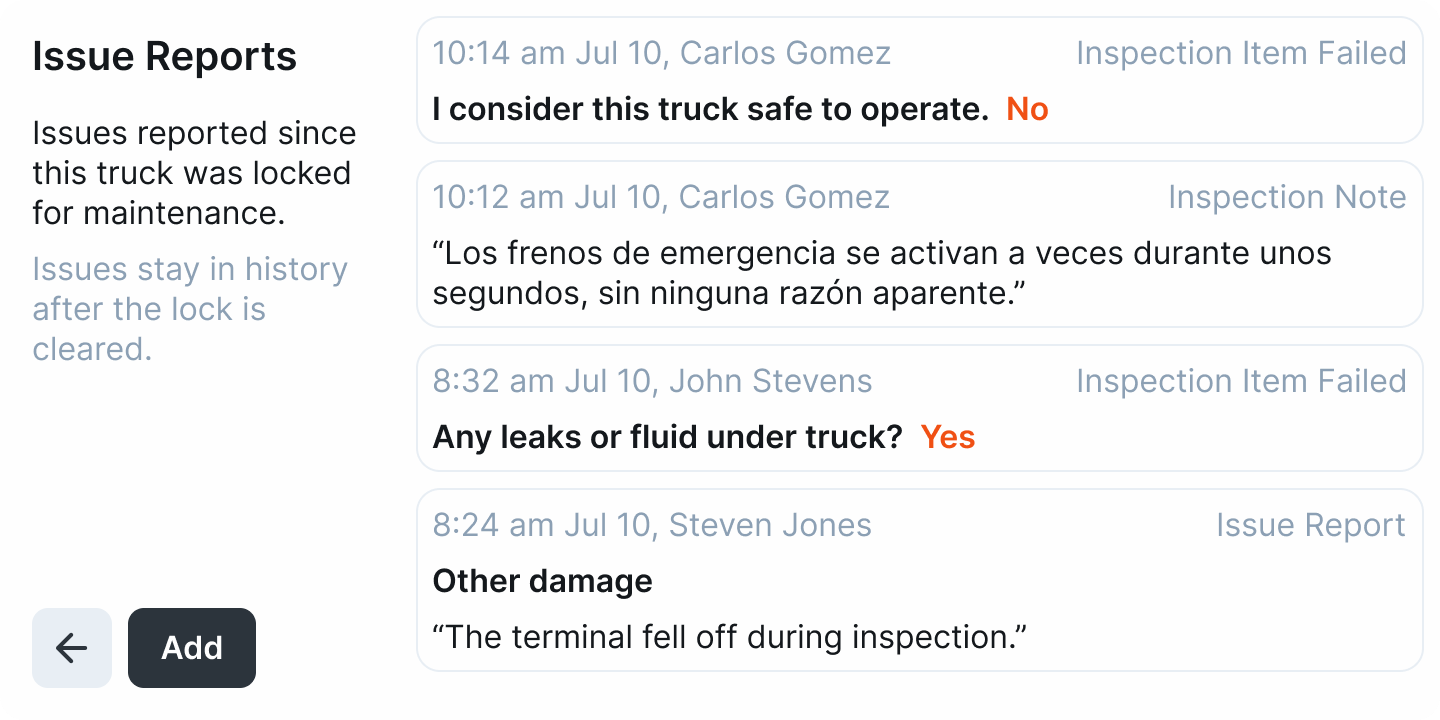
The other way to access the history of reports is by opening the Control Panel and clicking the Issue Reports tile. This will bring the operator or supervisor to the same Issue Reports screen as when a supervisor attempts to lift a Maintenance Lock. (See image above)
2. The Importance of Safety Inspections
In terms of workplace safety, the Occupational Safety and Health Administration (OSHA) is the controlling authority in the United States responsible for setting and enforcing protective workplace safety and health standards.
OSHA standards are rules that describe the methods employers are legally required to follow to protect their workers from hazards. Before OSHA can issue a standard, it must go through a very extensive and lengthy process that includes substantial public engagement, notice and comment. The agency must show that a significant risk to workers exists and that there are feasible measures employers can take to protect their workers.
These standards, for example, limit the amount of hazardous chemicals workers can be exposed to, require the use of certain safe practices and equipment, and require employers to monitor certain workplace hazards.
OSHA’s general industry powered industrial trucks standard at 29 CFR 1910.178 contains safety requirements relating to forklifts, tractors, platform lift trucks, motorized hand trucks, and other specialized industrial trucks powered by electric motors or internal combustion engines.
These material handling equipments are fundamental for a wide range of industries, but if not used properly, they could cause serious injuries and even fatalities.
The OSHA Standard 1910.178 covers numerous requirements for employers and employees to achieve a safe and healthful workplace.
One of the key requirements is the pre-shift inspections.
Section 1910.178(q)(7) reads:
This document is a handbook for the pre-shift inspection as part of the PoziTech SmarTruck system.
3. SmarTruck Forklift Safety Inspection
The following pre-shift inspection process not only aligns with the OSHA standards, but it is a far better solution for employers and employees than a paper-based process.
The SmarTruck solution provides a complex ecosystem for tracking, managing, and supporting logistics and storage processes carried out by using forklifts and other vehicles (MHEs). By making these processes transparent and properly documented, the SmarTruck solution can provide a solid base for analyzing the related processes and supporting optimization.
The card-based operator identification used by the SmarTruck system provides the possibility to manage the drivers’ permissions; the system only allows the MHE to be used by drivers who have been previously authorized to.
This identification and authentication procedure can be used for digital pre-operation inspections. Inspections can be completed on portable handheld devices connected to the system, displaying a customized daily checklist specific to the type and drivetrain of the forklift under inspection. The operation of the forklift is restricted by the system until the inspection is completed. Furthermore, accurate logging provides clear accountability and objective responsibility.
4. Start Inspection
PoziTech Safety Inspection, part of the SmarTruck platform, ensures effortless compliance with OSHA regulations through digital pre-operation inspections.
To initiate the pre-shift inspection procedure, authenticate yourself on the forklift you want to use:
- Scan your access card at the card reader on the forklift dashboard! To accomplish this, place your card into the reader’s card holder. Please note that the card must remain in the holder during the entire forklift operation, as the system functions as an immobiliser.
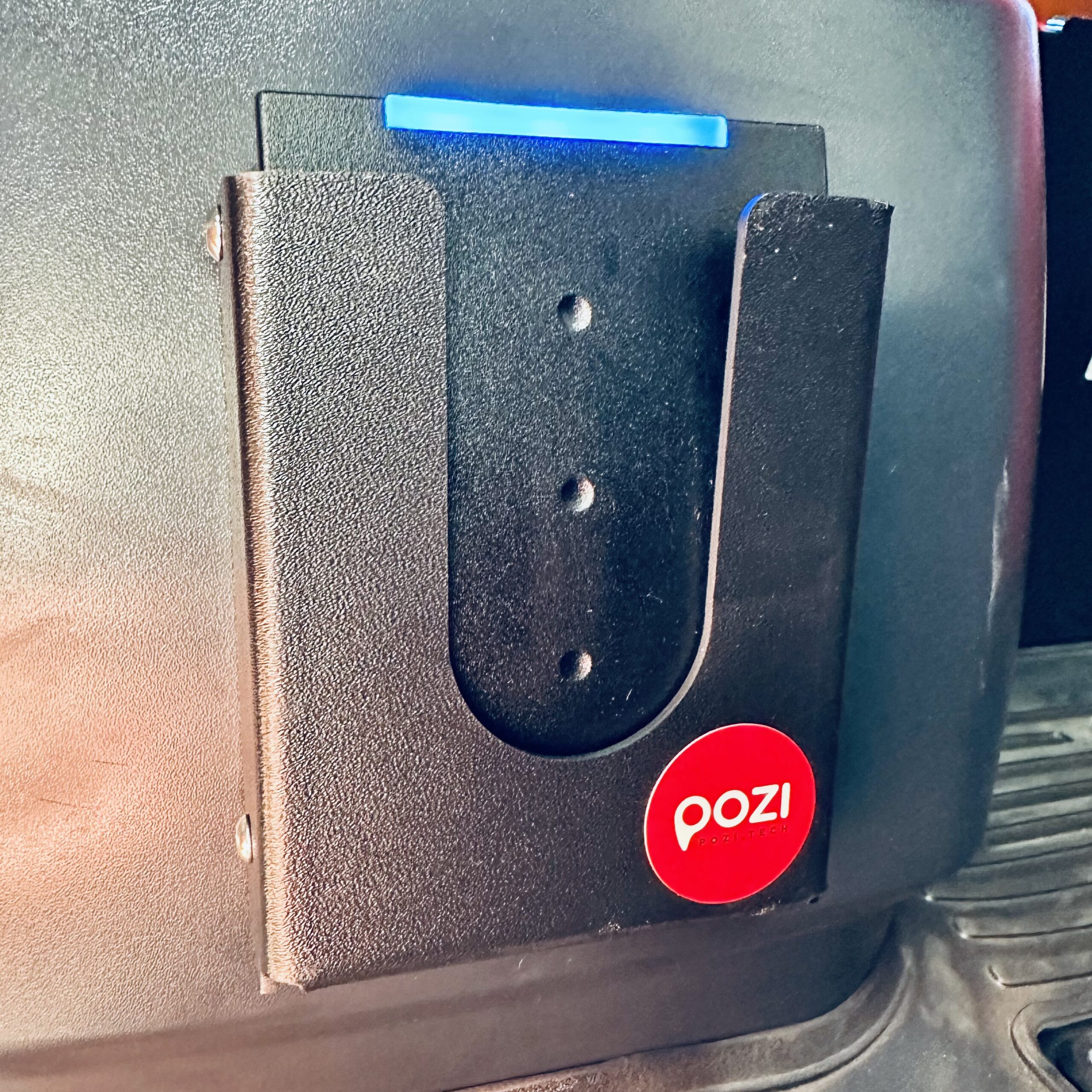
- Card reader on dashboard
- If the forklift is ready for authentication, the card reader displays a solid or alternating blue light.
- The card reader displays a solid green light upon authentication. Upon successful authentication, the mobile terminal should display the operator’s basic information on the Home screen (on the left side of the screen, bottom tile). It is important to note that the mobile terminal should already be connected to the forklift even before the safety inspection begins, so no further action is required – this can be confirmed by checking the top tile, located above the section where the operator’s details are shown.
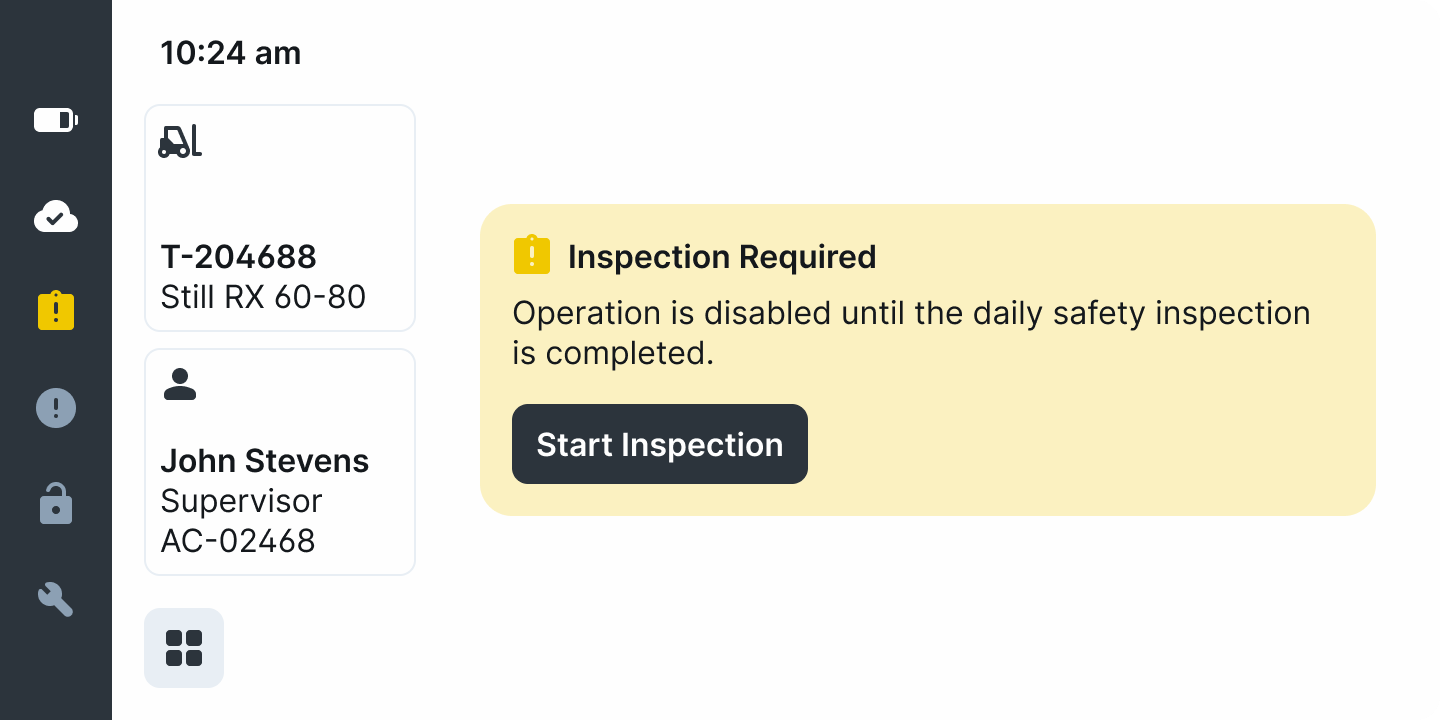
- The card reader displays a white flashing light if the authentication is successful and the pre-shift inspection is required and the screen displays a yellow Dashboard Card. A safety inspection is required each time a new shift begins or whenever a different operator starts using the forklift truck, regardless of whether the previous operator’s shift has ended.
After successful authentication and connection, the yellow Card for Inspection appears and the operator can proceed with the inspection by clicking on the Start Inspection button.
The inspection consists of a customized daily checklist specific to the type and drivetrain of the forklift under inspection and categorised for easier completion. Three main category appears: 1. Operator Fitness, 2. Walk Around, 3. At the Controls. (All presented in the preconfigured language)
A progress indicator at the top of the screen helps estimate the remaining time required to complete the inspection.
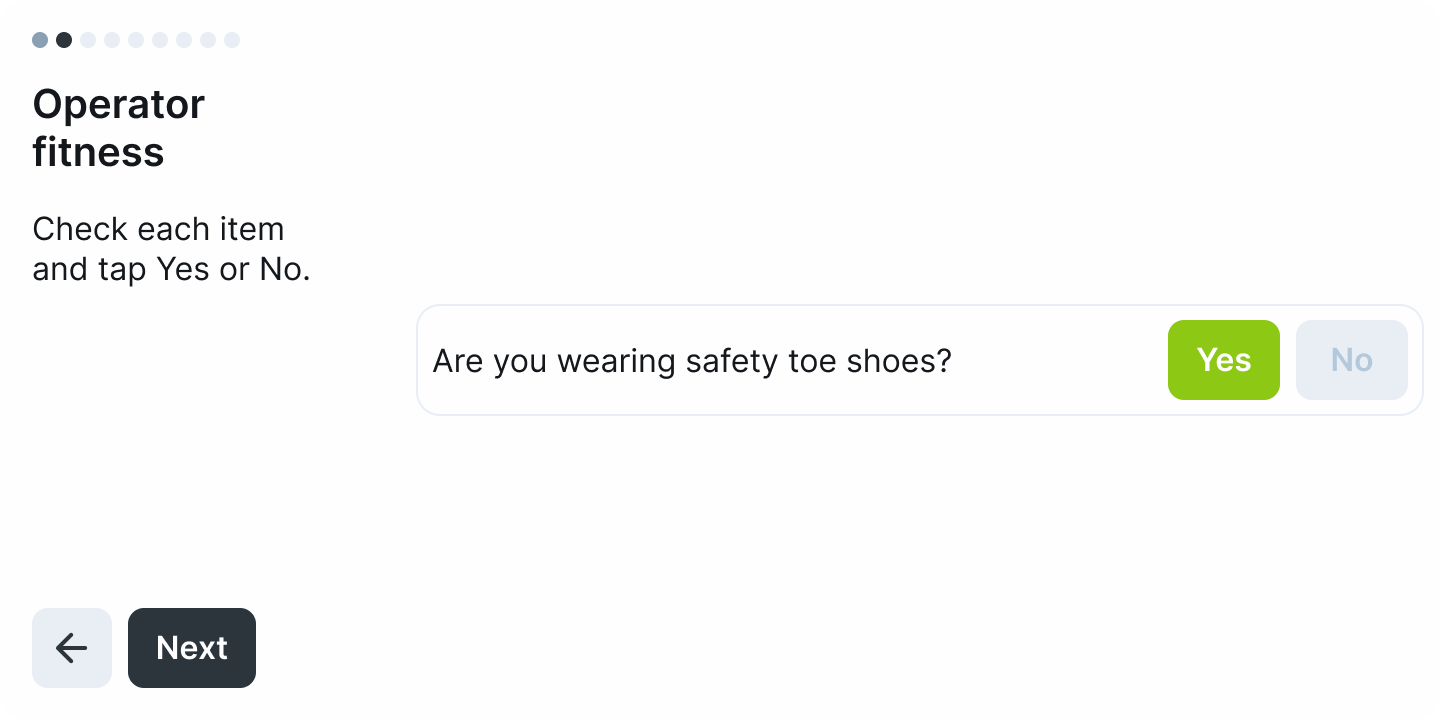
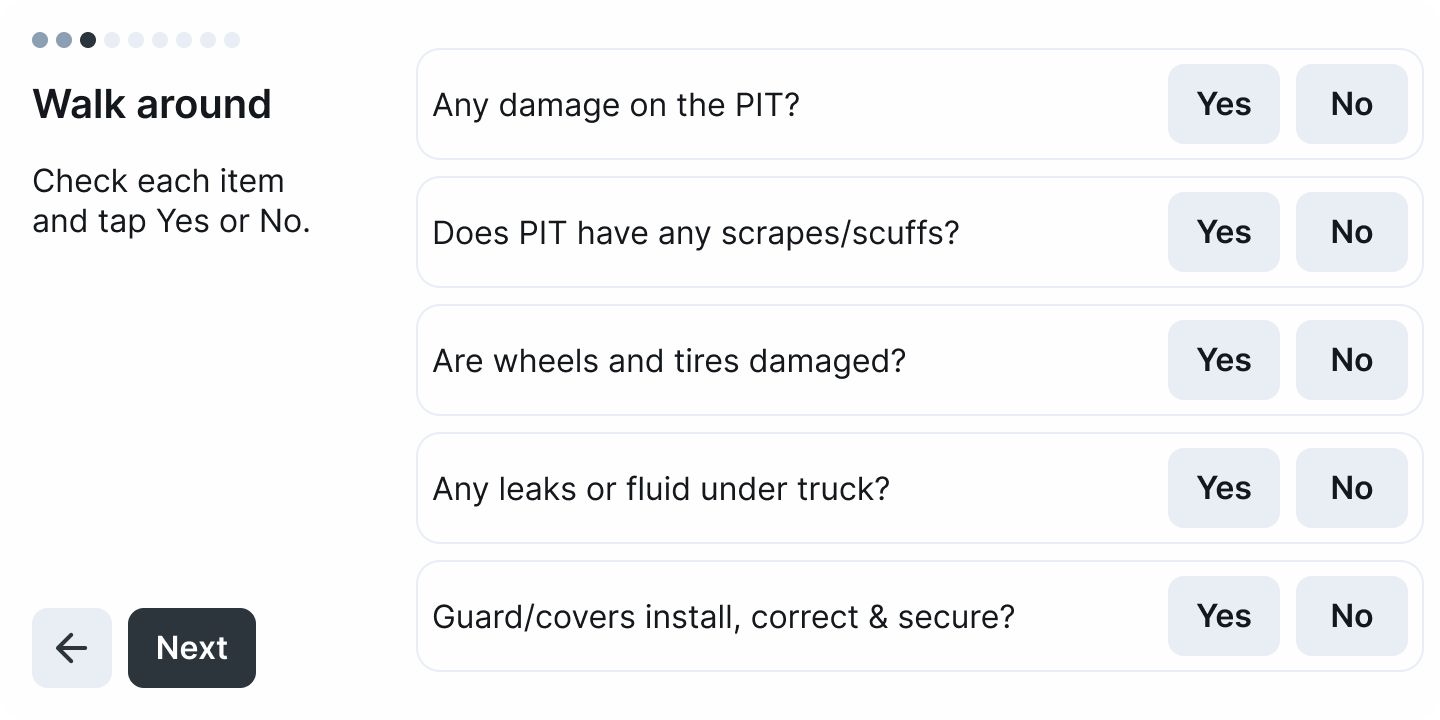
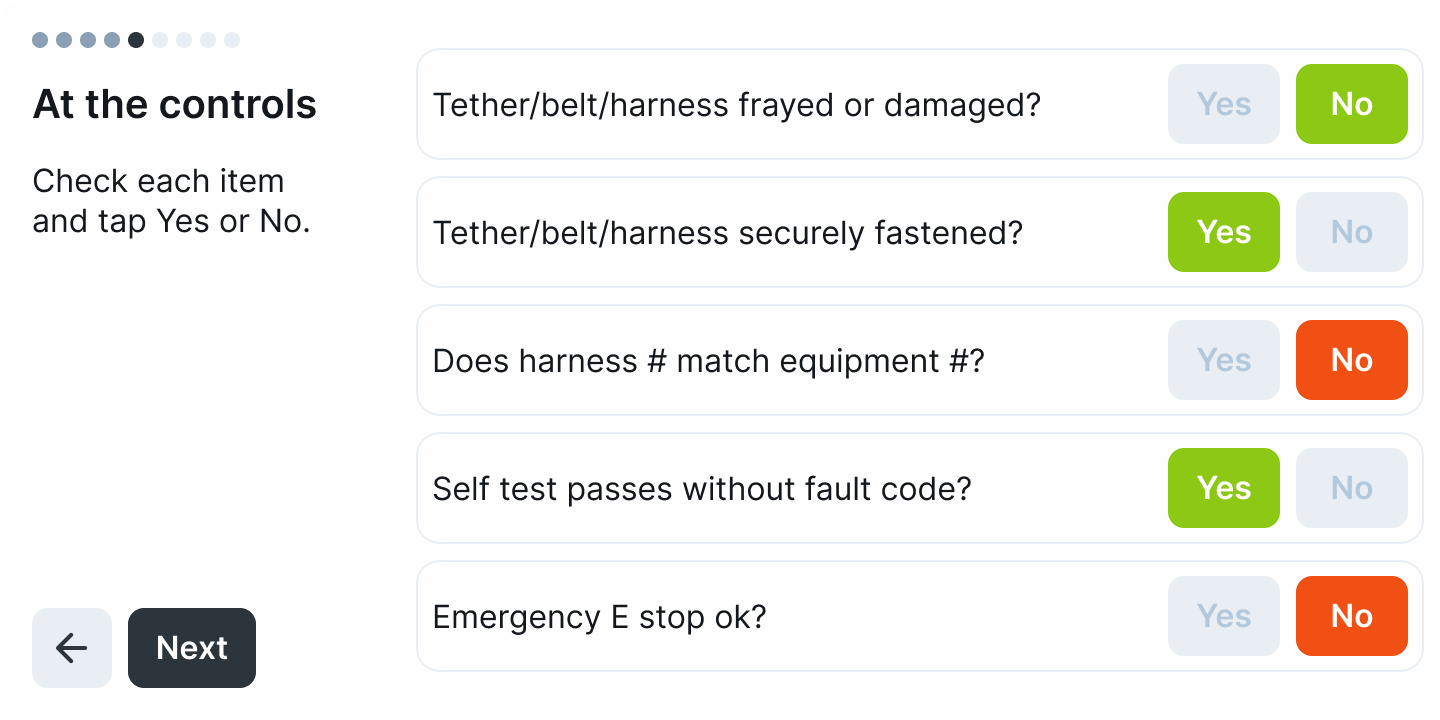
Typically, the items consist of single-choice questions with the following responses available: Yes / No.
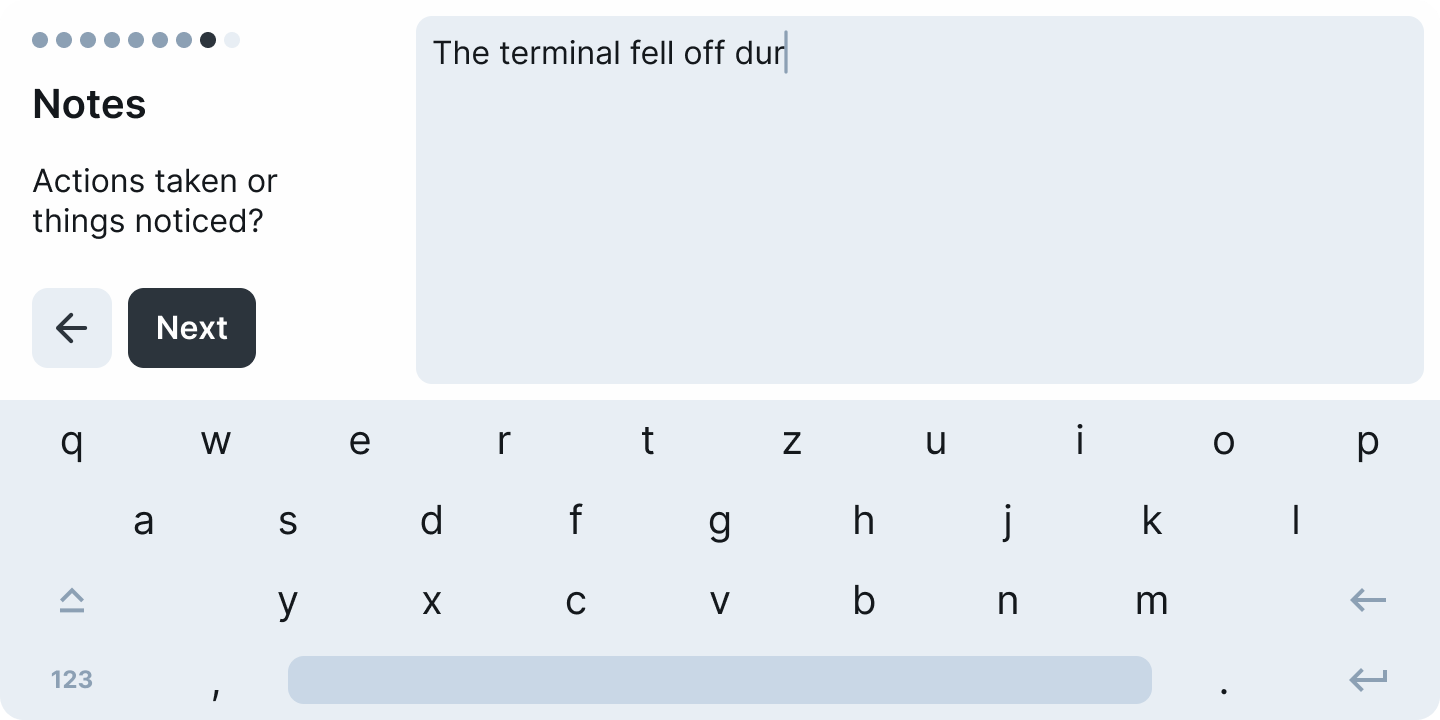
The inspection then proceeds to an optional Notes segment, where the operator can leave any additional comments regarding the forklift. These notes are saved with the inspection and can be reviewed later (see section 1.3 Issue Reports for more information).
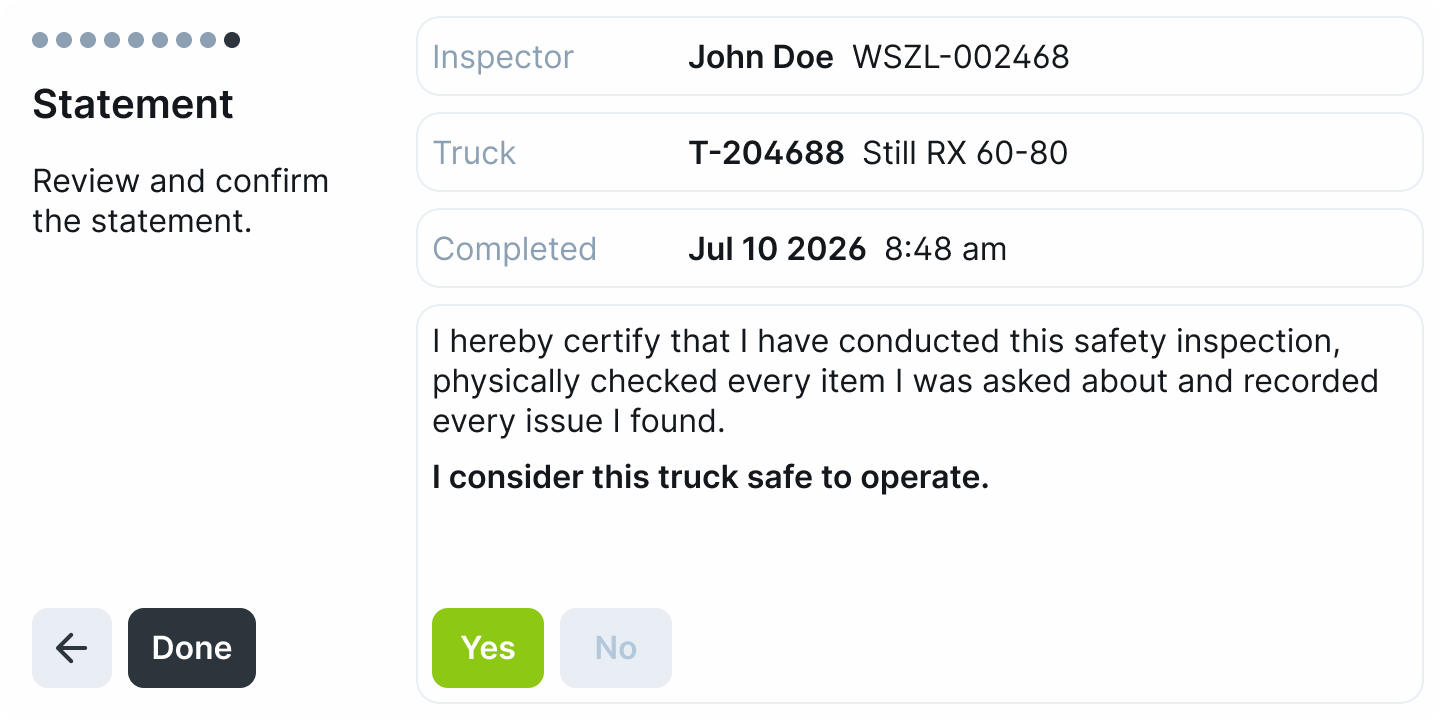
In the final step, the operator confirms the inspection statement to complete the inspection by tapping the related button (Done button), but before that the operator is given a final opportunity to indicate whether they believe the forklift is safe to use, by selecting Yes or No.
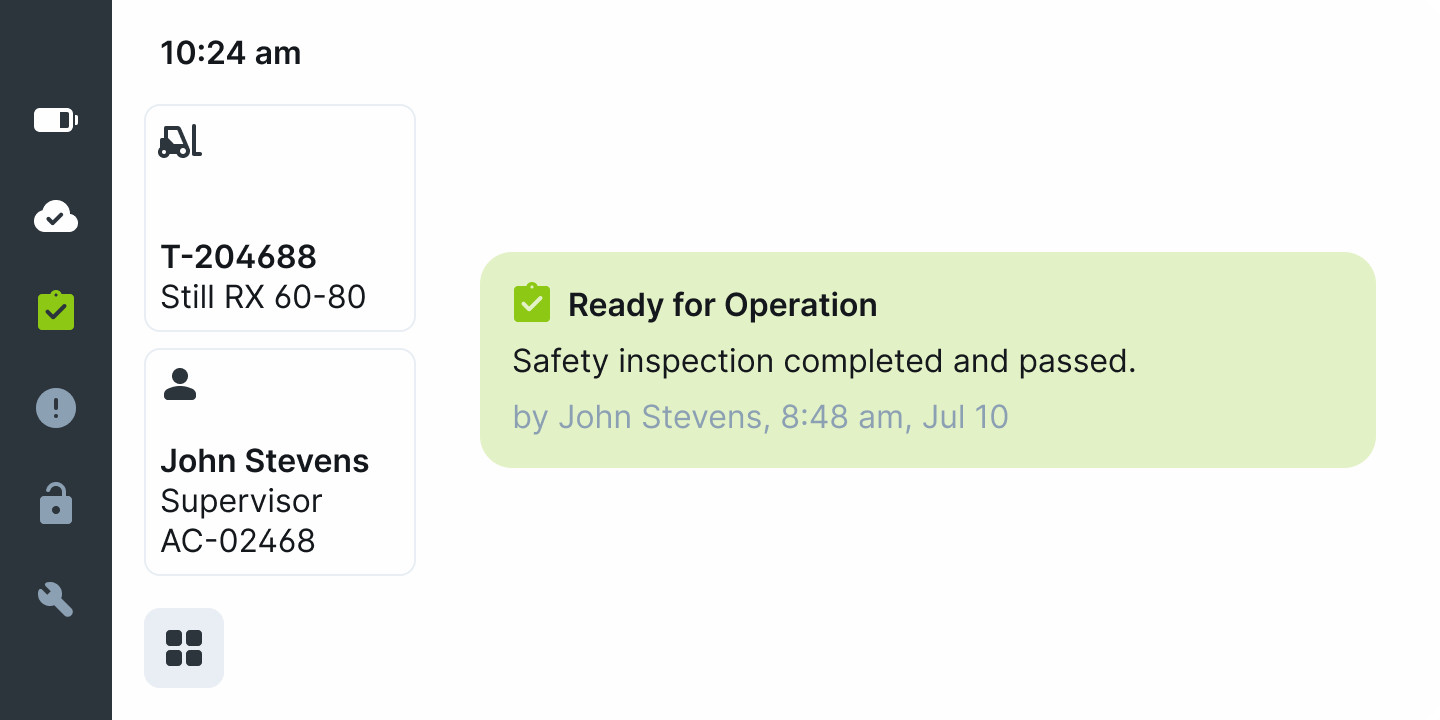
After successfully submitting the inspection, any authenticated employee can operate the given forklift until the end of their shift. Then the operator will return to the Home screen and see the following:
The card reader indicates the inspected state of the forklift with a solid green light upon authentication.